Support
Support Email: liftflowfitness@gmail.com
FAQ
How do I add plans?
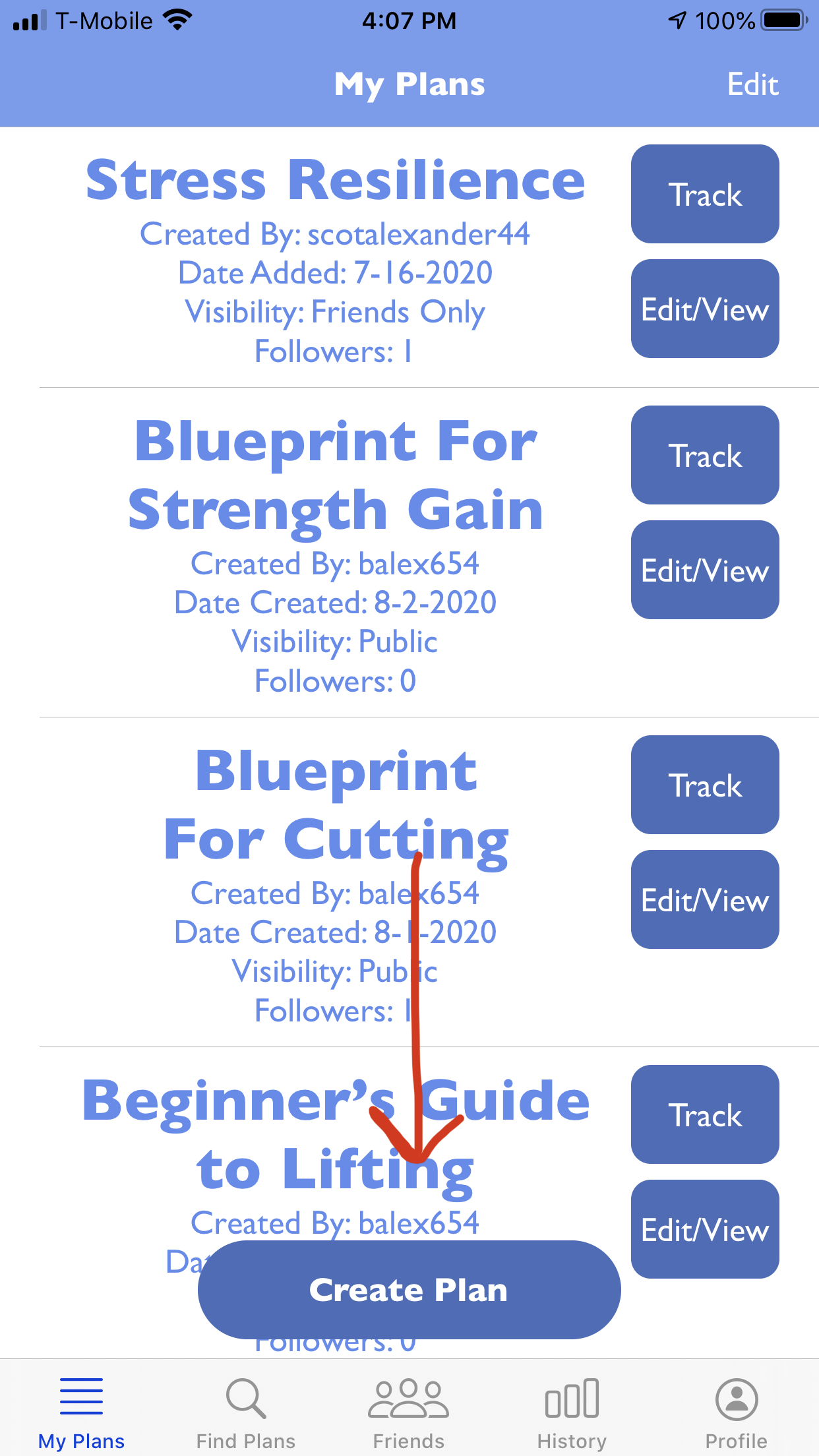
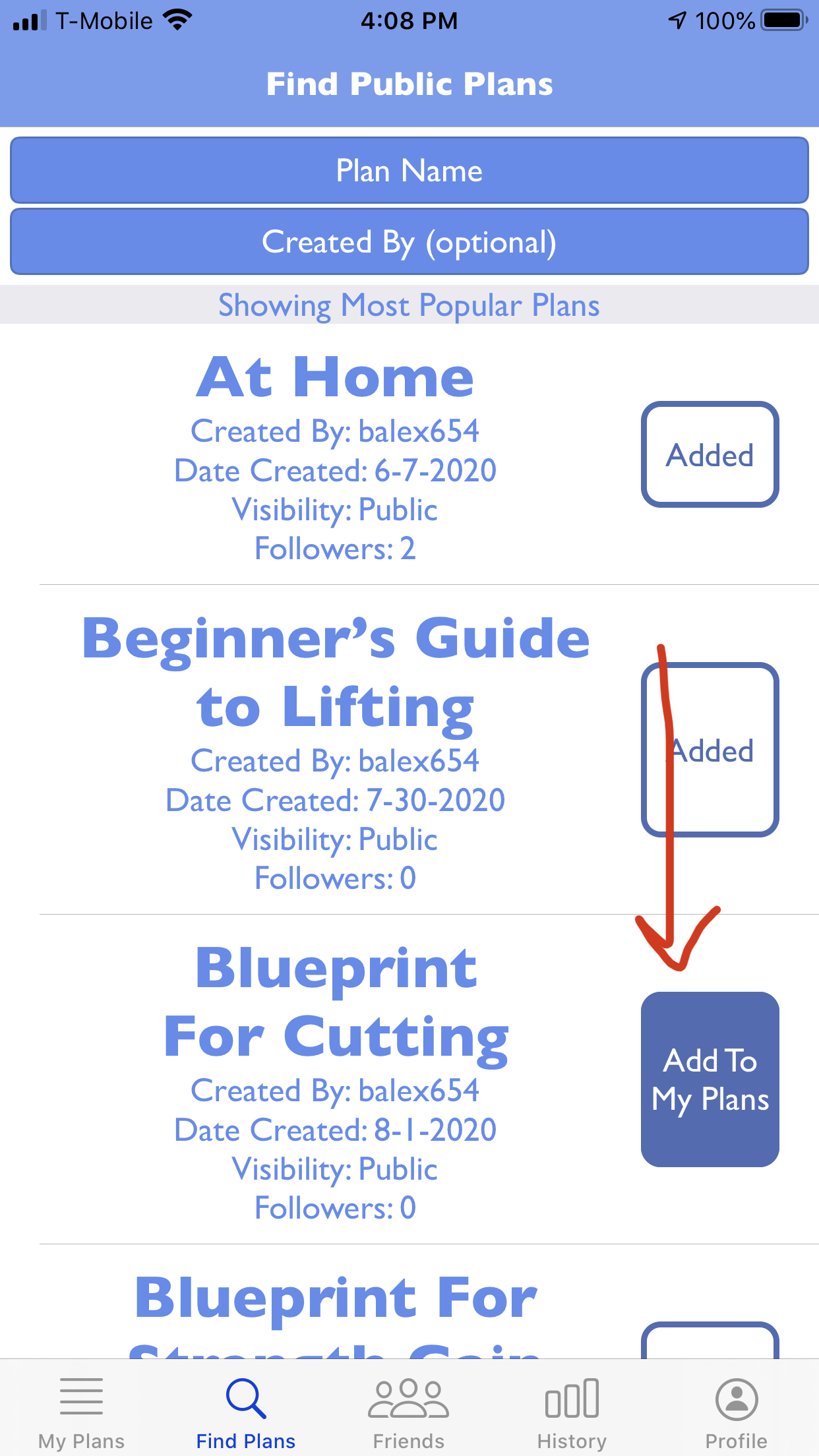
There are three ways to add plans to your personal set of plans in Lift Flow. The first is to create your own
plan. In the "My Plans" tab, you'll see that there is a "Create Plan" button which will take you to the plan
editor. The second way is to add a plan that someone has already made on Lift Flow. If you go to the "Find Plans"
tab, you'll see plans that are publicly visible to all Lift Mate users and that anyone is able to add to their own
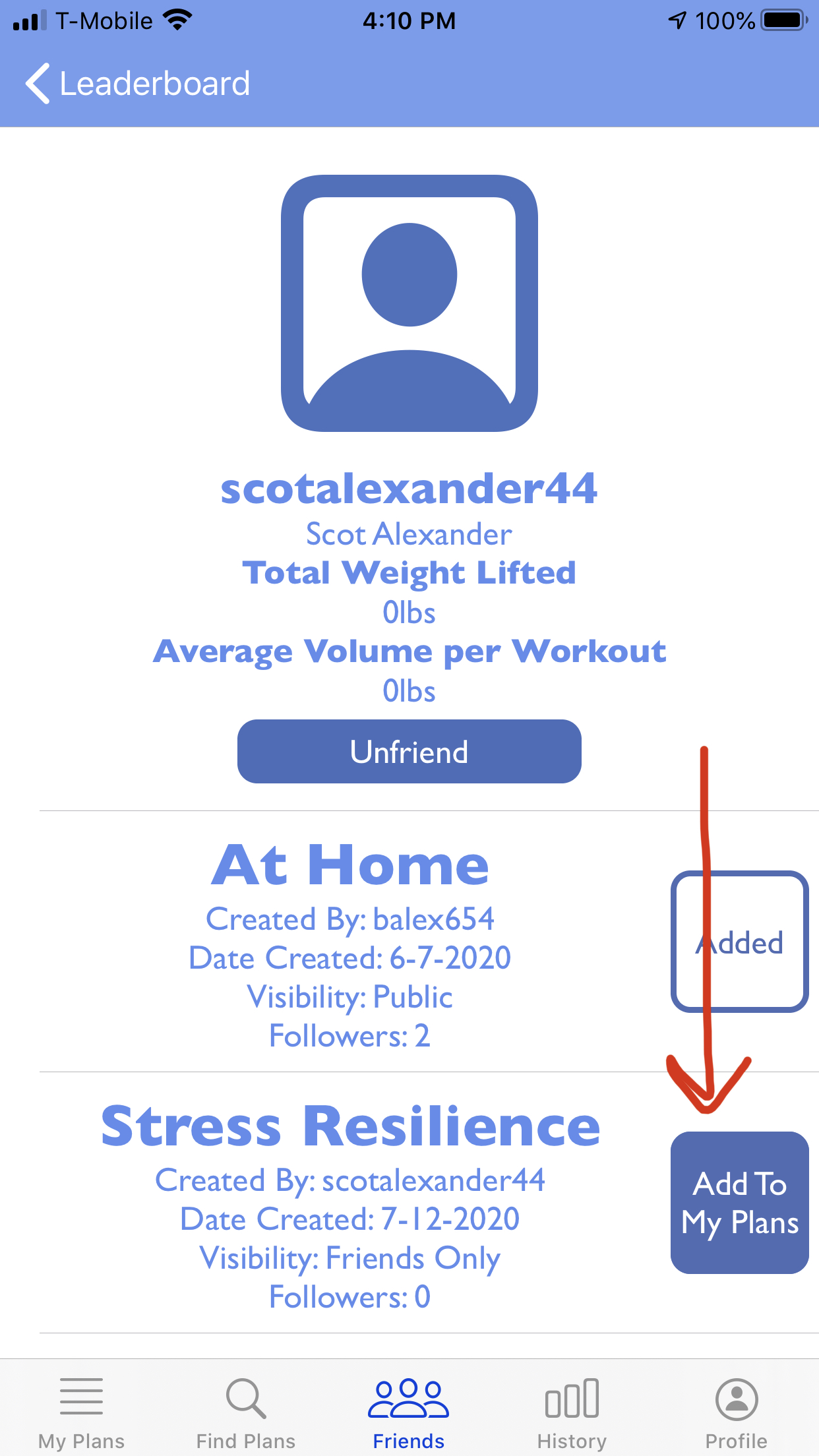
set. Lastly, you can add a plan that one of your friend's has added. Tap one of your friends in the "Friends"
tab and you'll be brought to their profile page. Assuming that their account privacy is set to "Public", you
will be able to see plans that your friend has added.
How do I track a workout?
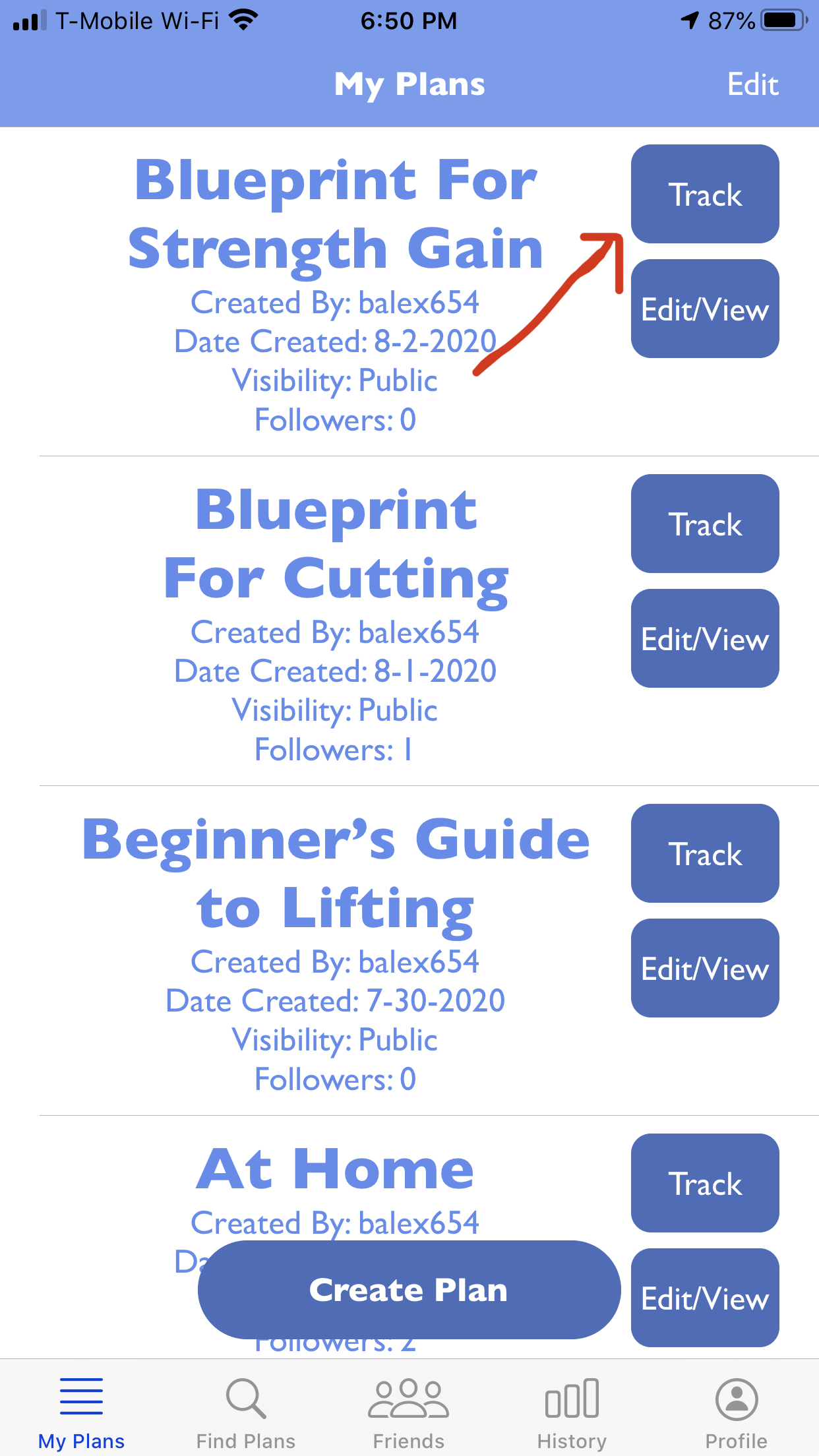
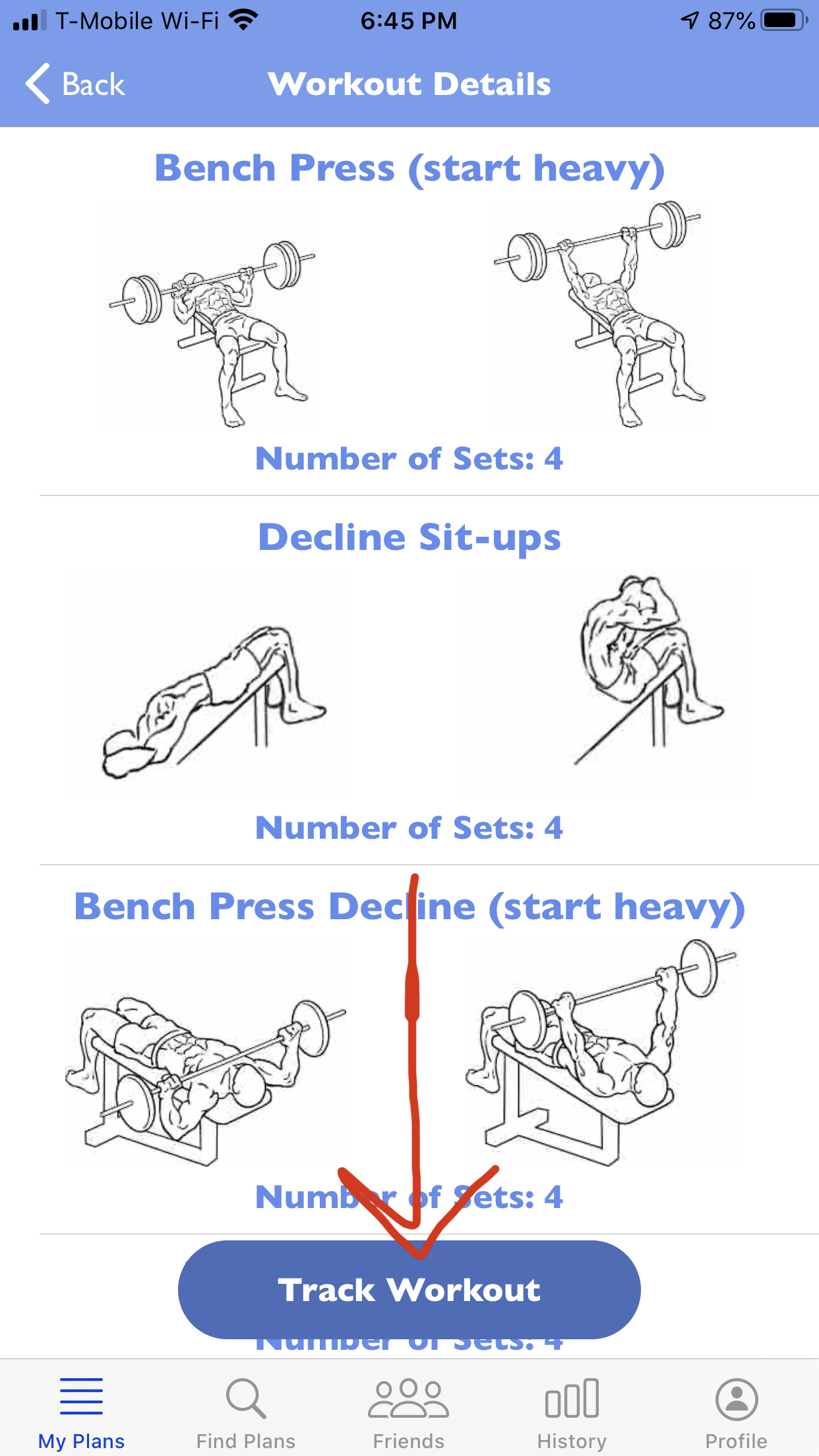
After you have a plan in the "My Plans" tab, tap the "Track" button next to the plan name. You will then be
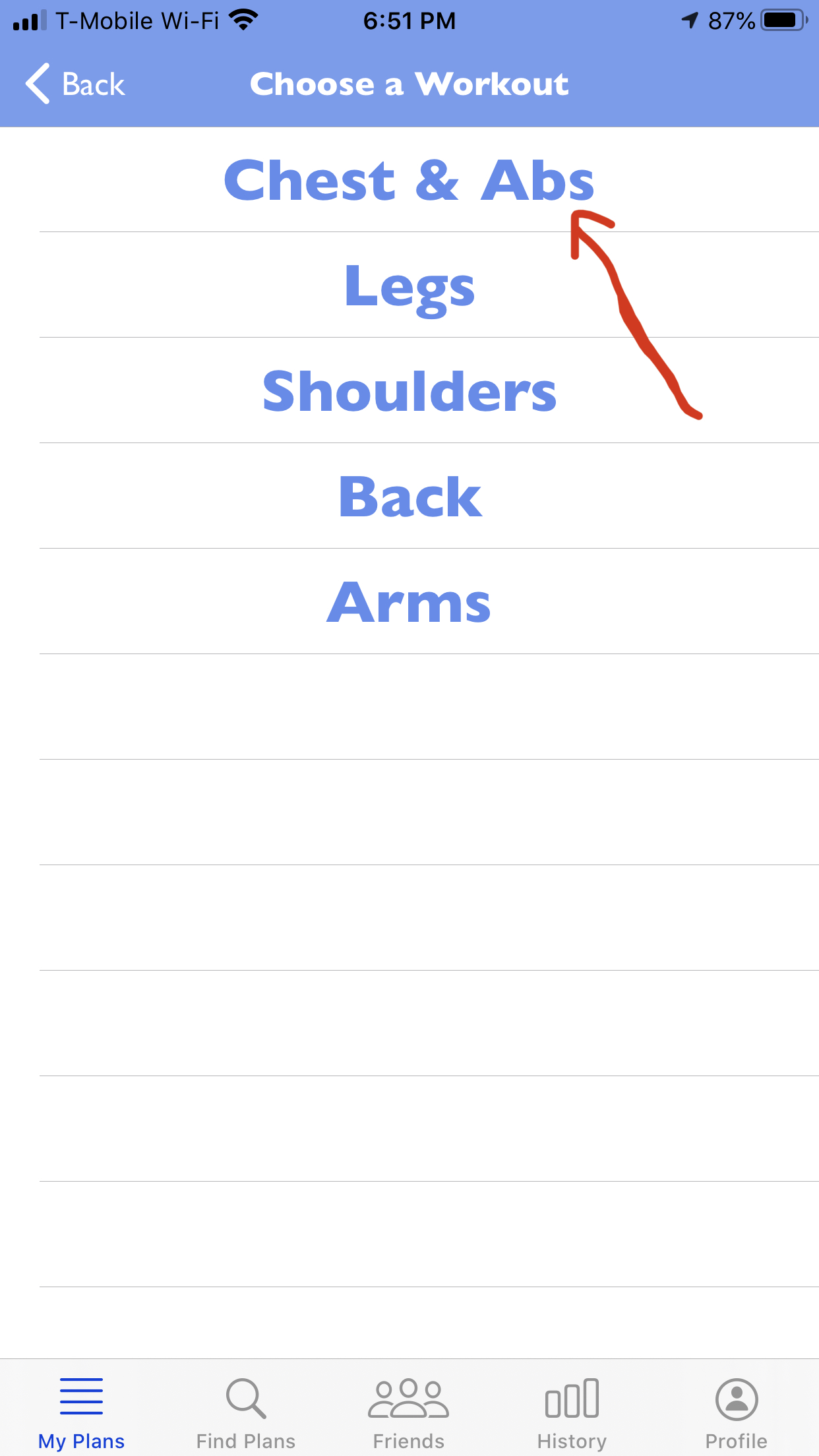
brought to a list of all the workouts in that plan and from there you can select a workout to track. Then
you will see a list of all the exercises in the workout, tap the "Track Workout" button at the bottom to start
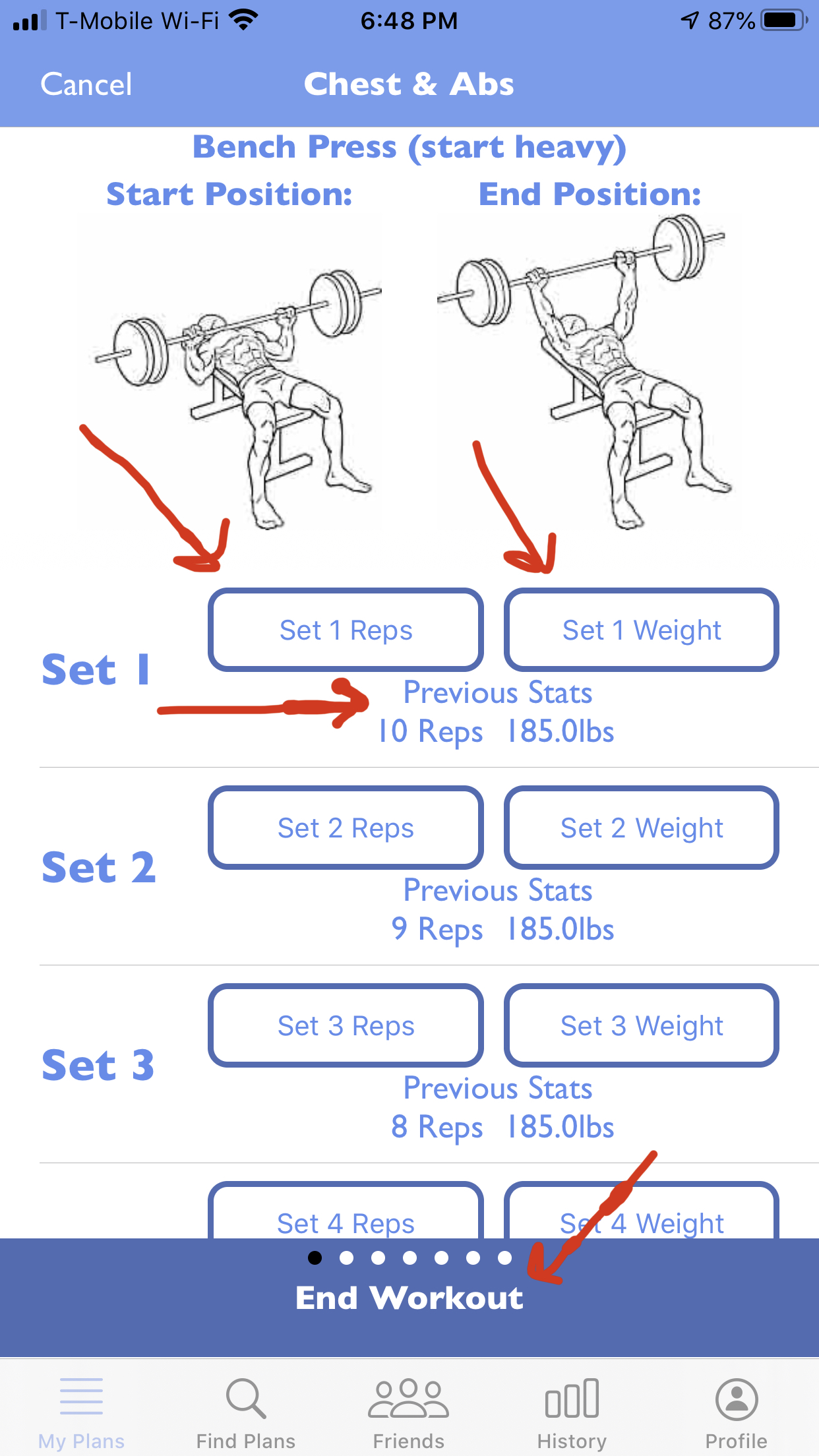
the workout. When tracking a workout, you are able to swipe left and right between exercises and every exercise
shows the number of sets. For a single set you can enter in the text field the number of reps and the weight
for the particular set and the "Previous Stats" values show the reps and weight that you entered the last time
you did the workout. After you have entered all the data for your workout, tap the "End Workout" button to see
the summary of your workout.
What metrics do the charts in "History" use?
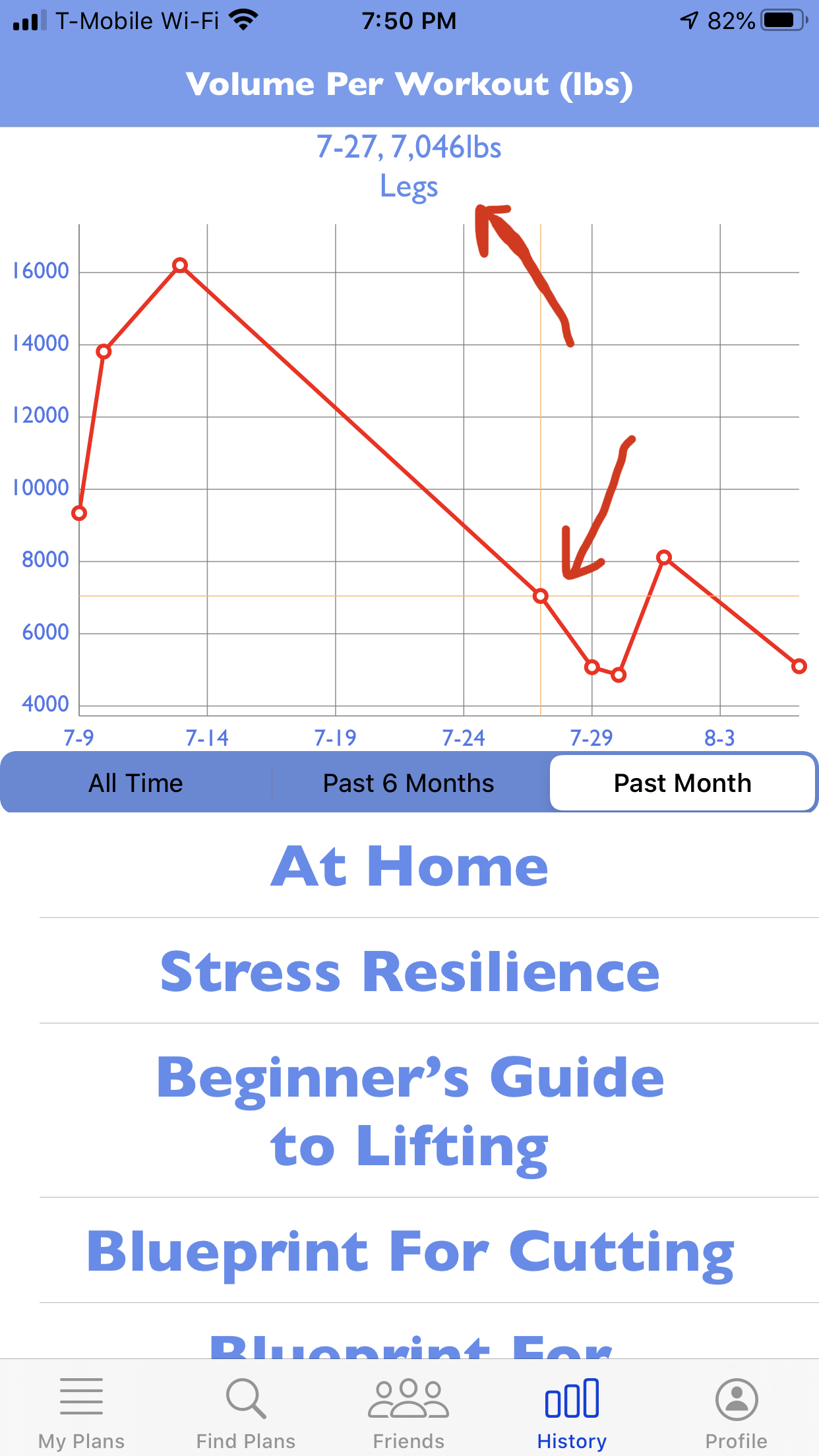
The first chart that you see when you select the "History" tab is your volume per workout over the last month.
Volume is the sum of the weight multiplied by the reps for every set of every exercise in a workout. Each point
For this chart represents a workout and if you select a point, you can see the date, volume and name of the workout.
The "Past 6 month" tab shows your average volume per workout for each of the past six months and the
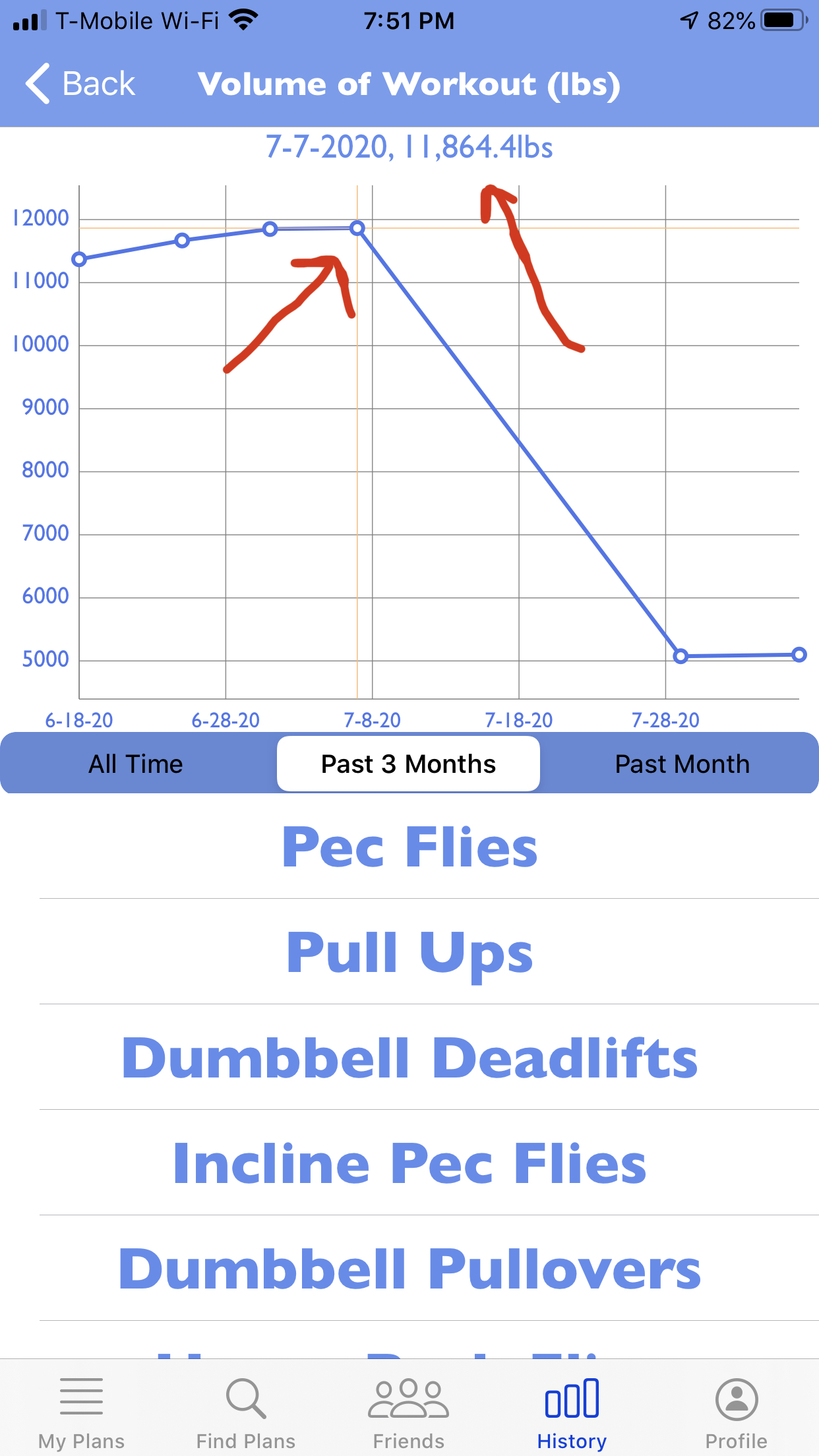
"All Time" tab shows the same type of data but for every workout that you have done. If you select a plan and then
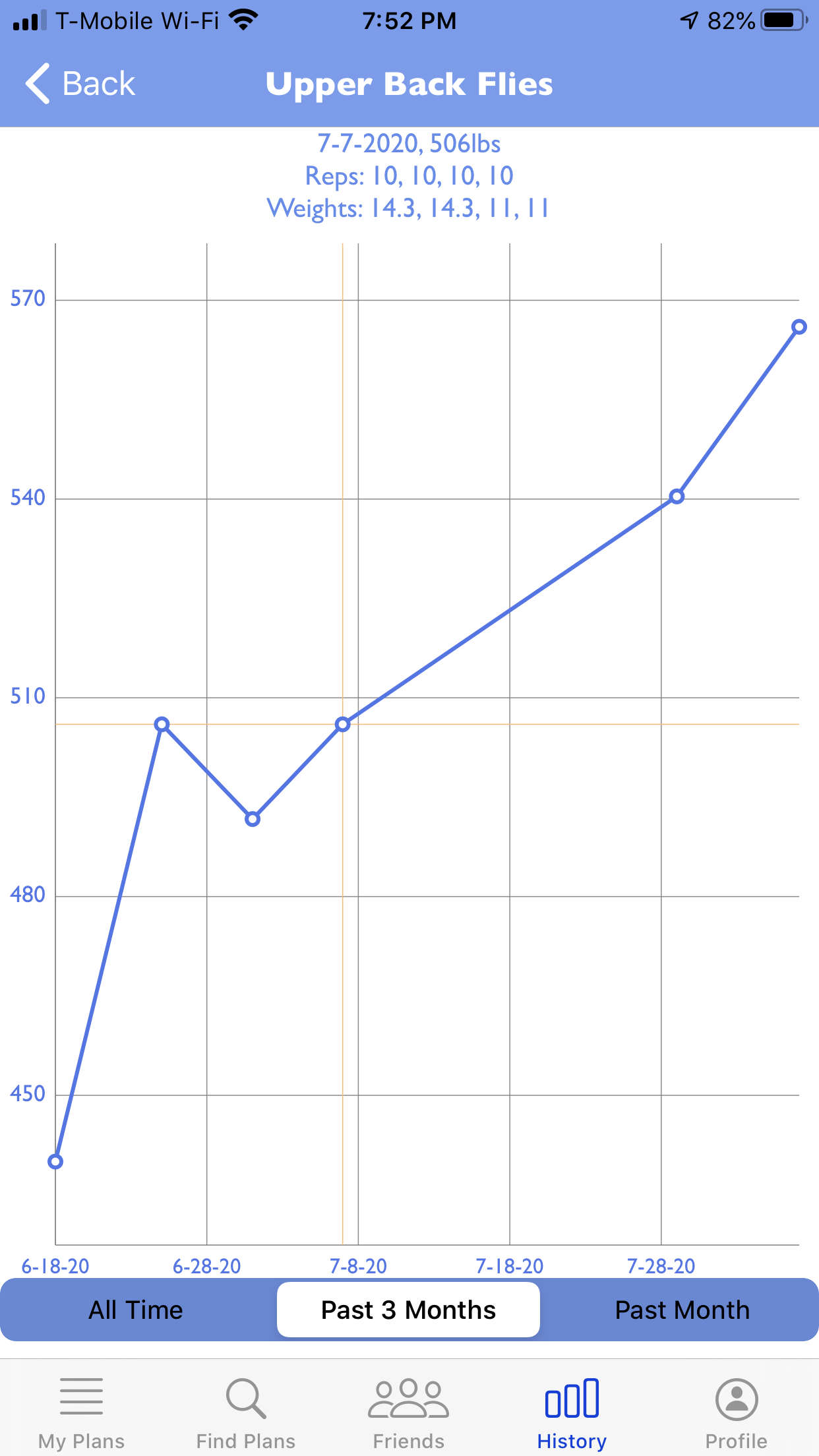
a workout, you will see a chart showing the volume for the specific workout. If you select an exercise, you will
then be able to see the volume for the exercise. If you select a point, you can then see details of the reps and
weights you did for each set of that exercise on the day you did it. Which is very helpful if you want to see whether
you're improving or not.